

What the XSLT deprecation banner means for classic RemoteApp portals and what businesses should plan next
The Banner That Appeared Everywhere
Organizations using classic Remote Desktop Web Access may have noticed a new Microsoft Edge banner: the site uses XSLT, that functionality is being removed, and the page may no longer display correctly. Seeing the same alert across multiple RDS installations can be alarming, especially when RemoteApps are part of everyday operations.
The important first distinction is that this is a browser compatibility warning. It does not, by itself, mean the server has been breached, the RemoteApps are damaged or the RDS environment has already stopped working.
What Is XSLT Doing Here?
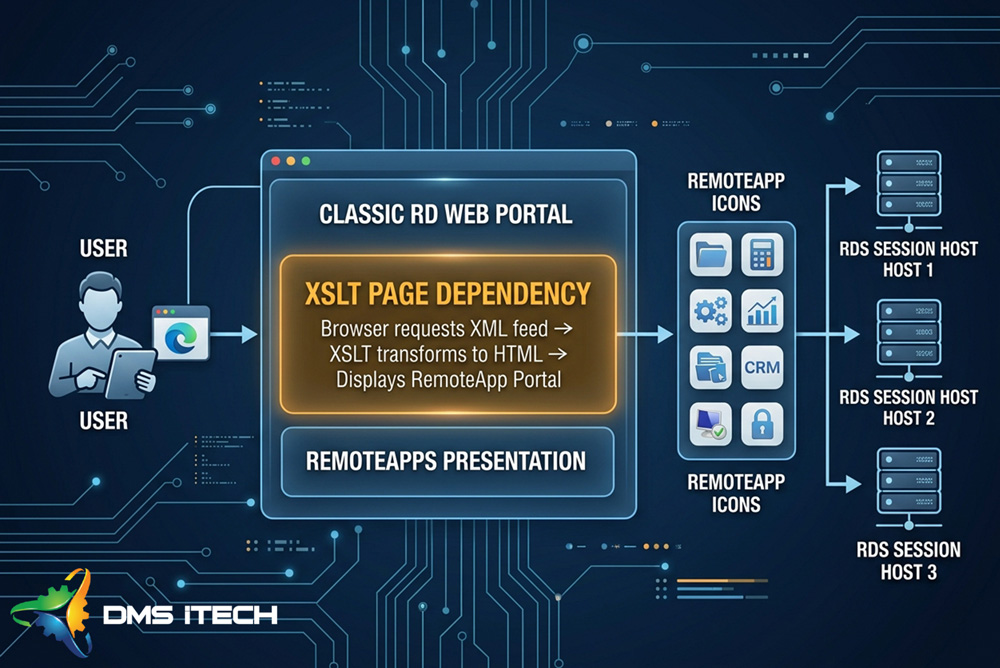
XSLT is a web technology used to transform XML data into content a browser can display. The classic RD Web Access interface relies on XSLT when presenting published RemoteApps and desktops after a user signs in. Microsoft Edge is based on Chromium, and the browser platform is phasing out this functionality because of security and maintenance concerns.
What the Banner Really Says
The portal still works today, but it depends on a browser feature scheduled for removal. Without a compatible solution, the classic resource page may no longer render correctly when that feature is disabled.
Will RemoteApps Stop Working?
The most accurate answer is: the classic web portal experience is at risk; the underlying RemoteApp publishing and RDS roles are separate components. If users depend on the classic RD Web page to discover and launch applications, a page that no longer renders can effectively block their normal workflow even though the session hosts and applications remain available.
Impact will depend on the environment, browser version, management policies, authentication requirements and the alternative access method selected. That is why organizations should test their own RDS deployment rather than rely on a generic workaround.
Component | What the warning concerns | What to verify |
Microsoft Edge / Chromium | Browser support for XSLT. | Version, policy status and test behaviour. |
Classic RD Web Access | The XSLT-based page that lists resources. | Whether the post-login page renders without XSLT. |
RD Gateway / Session Hosts | Remote connectivity and application sessions. | That published apps still launch through the chosen replacement path. |
RemoteApps | Applications delivered through RDS. | Printing, clipboard, drives, authentication and user experience. |
Why Microsoft Is Not Just Hiding the Banner
Temporary browser policies may preserve XSLT for managed environments during a transition, but Microsoft documentation describes the Edge XSLT policy as temporary. Treating a temporary control as the permanent fix can defer the same problem until the policy itself is removed.
Possible Paths Forward
The right choice depends on how users connect and which features the business requires. Options that may be evaluated include a newer browser-based Remote Desktop web client, Remote Desktop feed or workspace subscriptions, signed RDP files, a managed desktop client, or a redesigned delivery platform.
Option to evaluate | Potential advantage | Key questions |
HTML5 web client | Browser-based access without the classic XSLT page. | Does it support required authentication, MFA, printing, file transfer and device redirection? |
Remote Desktop feed / workspace | Published resources appear in a client for easier launch. | Can the feed be deployed and secured for managed and external devices? |
RDP files / desktop client | Uses the native client and may preserve needed redirection features. | Are files signed, distributed safely and compatible with user workflows? |
Temporary XSLT policy | May provide transition time on managed browsers. | What is the documented end date, and what about unmanaged or BYOD devices? |
What Users May Notice
- The warning banner appears even though sign-in and RemoteApps still work.
- The classic page may eventually display incorrectly or fail to list applications.
- Users on unmanaged home computers may be affected differently from company-managed devices.
- A replacement access method may look different or require a client/workspace subscription.
- Features such as local drive, printer, clipboard or multi-monitor redirection may differ and must be tested.
What IT Teams Should Do Now
- Identify every RD Web Access deployment and the business groups that rely on it.
- Document the current sign-in path, MFA integration, browser requirements and published resources.
- Test what happens when XSLT is disabled in a controlled environment.
- Evaluate replacement access methods against real requirements, including printing, drive redirection, file transfer, scanners and line-of-business applications.
- Check vendor support for MFA and authentication integrations before deciding on a portal.
- Create a pilot group and document the user instructions.
- Use temporary policy only as a controlled bridge, not as the entire migration plan.
- Communicate before changing the launch experience so the banner does not create unnecessary support calls.

Do Not Recommend a Different Browser as the Strategy
Switching browsers may appear convenient if another browser still displays the page, but it does not modernize the dependency. Browser vendors can make similar security changes, and maintaining an outdated access path creates long-term operational risk. A sustainable plan should remove or replace the dependency, not simply move it.
Security Still Comes First
Remote access portals are exposed to credential attacks and often handle sensitive business sessions. Any change should preserve or improve MFA, certificate trust, logging, patching and least privilege. Avoid downloading unknown extensions or “repair tools” simply because the warning mentions an extension. Use only solutions validated by your IT provider and relevant vendors.
A Calm Message for End Users
Suggested Notice
You may see a warning in Microsoft Edge when opening the RemoteApps website. This is a compatibility notice about an older webpage technology, not an indication that your account or computer has been compromised. Continue using the current process unless DMS iTech or your IT administrator provides new instructions. Please report any page that no longer loads or any unexpected request to install software.
The Window for Testing Is More Valuable Than the Banner Is Annoying
The warning gives businesses something rare in IT: advance notice. Use that window to inventory, test and communicate. Waiting until applications disappear from a user’s portal turns a manageable compatibility project into an urgent outage.
Don't Panic, DMS iTech is Here
DMS iTech can assess each affected RDS installation, confirm whether the classic XSLT-based RD Web page is in use, test browser behaviour and map the features users depend on. We can then recommend and pilot an access path that fits the environment, including its MFA, RemoteApp, printing and device-redirection requirements, while using any temporary browser policy only where appropriate and documented.


